A Comprehensive Guide into Object Detection with Ultralytics YOLO
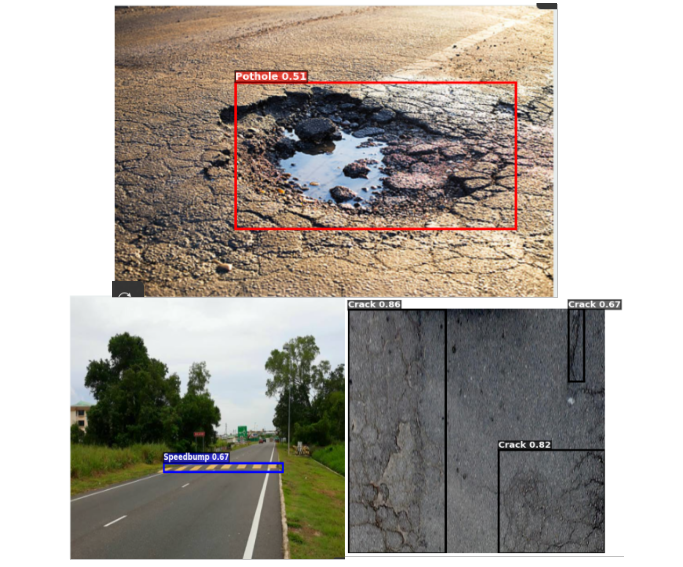
Object detection entails two major things: classification and localization. Classification answers “what object is there?” while localization answers “where is it?”. YOLO models have been excellent answering both questions at once, that is, they simultaneously classify objects in a scene and identify their particular location with bounding boxes.
This blog post based on a class project, won’t go into the mathematical foundation of the YOLO algorithm but would rather walk through the process, typical of training and deploying an object detection model with Ultralytics-managed YOLO. We will train YOLO to detect three different kinds of road anomaly (crack, pothole, and speedbump) using publicly available datasets.
By the way, YOLO stands for You Only Look Once. See the paper that introduced it for reference.
The usual pipeline has three main stages: Image Data Acquisition and Processing, Model Training, and Performance Evaluation and Testing. For the sake of large downloads, processing and ease of access, we will perform the first stage (image acquisition and processing) on our PC. However, the model training will take place on Kaggle because of the free accelerators (GPU) quota they provide, open an account at kaggle.com if you don’t have one. Then the cleaned dataset will be uploaded to Kaggle for the training. You may want to skip through to training, for this, access the cleaned dataset here.
Image Data Acquisition And Processing
This is the most messy part of the process as lots of temporary files will be created and care needs to be taken to avoid painful errors. Again, you may want to skip through to training, for this, download the already prepared dataset at Kaggle.
Because this is done locally on our PC, there are installations to make. First, install a recent version of Python from the official release page at python.org. Once installed, make a directory and create a virtual environment by running this command
mkdir road-anomaly-ds && cd road-anomaly-ds
python3 -m venv .road-anomaly-env
Activate the virtual environment created with
source .road-anomaly-env/bin/activate
Then we install numpy, matplotlib, and jupyter running
pip install numpy matplotlib jupyter
Now, we can download the raw datasets for each three classes via the following links:
Rename the downloaded folders accordingly and move them into the project directory road-anomaly-ds we created earlier.
Overview of the datasets
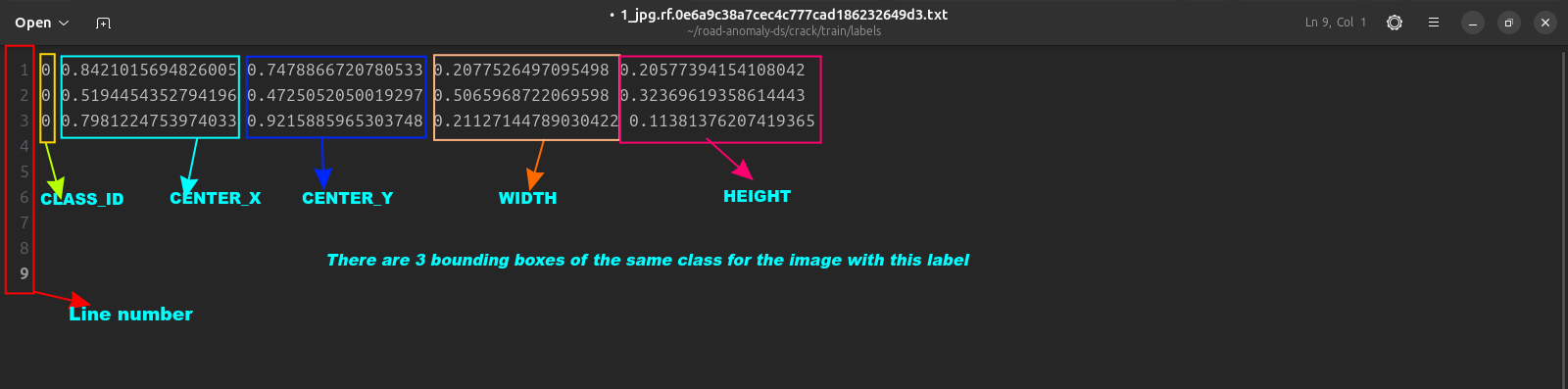
There are two most important parts to each dataset (either the train, val or test sub-sets). These are the images and labels. An image in the images folder has a label with the same name in the labels folder. All label files are in .txt format and they contain five numbers separated by a spaces on each line. These numbers describe the bounding boxes. It is structured as:
CLASS_ID CENTER_X CENTER_Y WIDTH HEIGHT
—————————————————————————————————————————————
We outline the objectives of this stage again. Which is to have a merged dataset with the three classes with label ‘0’ for pothole, ‘1’ for speedbump, and ‘2’ for crack. Also, this merged dataset is to have a 70-15-15 split for training, validation, and test sets respectively.
Here is how we achieve this:
- We move all images in the train, val or test sub-folders of each datasets into a single folder say images. We do the same for the label files too.
- We check the data.yaml file in each class folder to understand the structure
- We remove unwanted labels and their ids if any by checking the data.yaml of each datasets
- We re-map label ids such as ‘0’ for pothole, ‘1’ for speedbump, and ‘2’ for crack
- We combine all images and labels from the three classes into a ‘images’ and ‘labels’ folder
- We split into the training, val, and test sets
- We create and update data.yaml file to correctly point to each sets and class.
Note that we specially treat crack dataset as it is in segmentation format and not bounding boxes as object detection with YOLO requires. Here is complete code for this crucial step.
Model Training
Here comes the fun part of model training. First, we create a new notebook with the kaggle account opened earlier, and upload the dataset or simply add it if you hadn’t gone through the dataset cleaning process, by searching for “road_anomaly_ds”, and adding it as input.
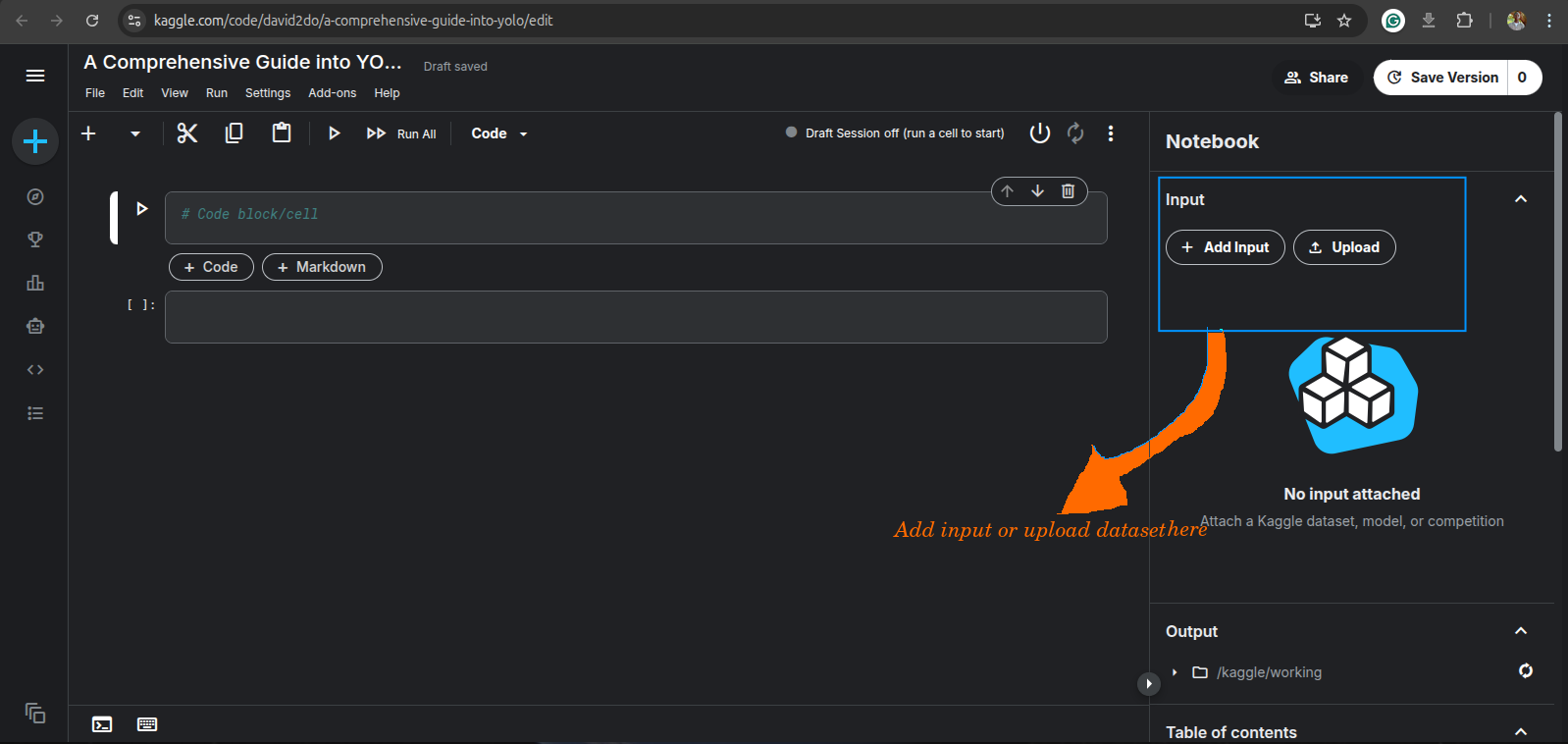
Then, we install the ultralytics package by running:
!pip install ultralytics
The ultralytics package provides a unified framework for training, validating and deploying AI models across platforms.
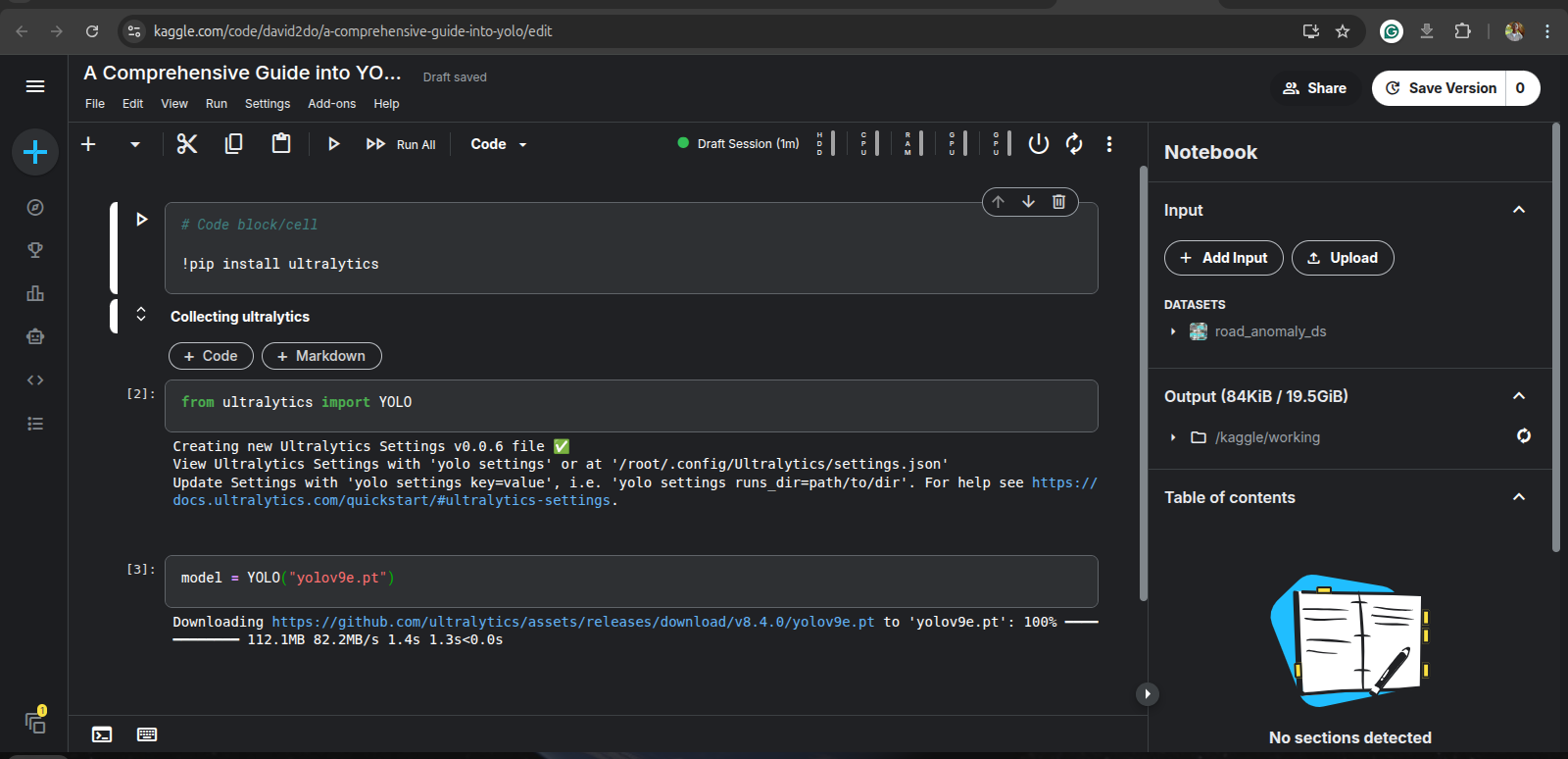
Once ultralytics is installed, import the YOLO module by running this code in a new cell:
from ultralytics import YOLO
For this tutorial, we will be training a yolov9e version on the dataset. Therefore, we instantiate YOLO with this version. Run:
model = YOLO("yolov9e.pt")
This will cause the model architecture and the COCO-pretrained weights to be downloaded on the kaggle session.
We train on our dataset:
model.train(
            data='/kaggle/input/datasets/david2do/road-anomaly-ds/data.yaml',
            epochs=100,
            batch=16,
            lr0=0.0001,
            imgsz=640,
            optimizer='AdamW',
            workers=8,
            project='/kaggle/working/runs',
            name='yolov9_lr_0.0001',
            mosaic=1.0,
            mixup=0.5,
            cutmix=0.5
           )
- data: This is the path to the YAML file which points to the train, val and test set. It also contains the classes, and their labels
- epochs: Simply, the number of times the model learns from the train dataset. Selected as 100 here.
- batch: The number of samples the model sees before it “learns” (update it’s weights).
- imgsz: Input size for the images
- lr0: The learning rate; a key hyperparameter to experiment with.
- optimizer: An algorithm that updates the weight of the network. AdamW is used here.
- project and name: This is the path to save training results and files.
- mosaic, mixup, and cutmix: These are dataset augmentation techniques.
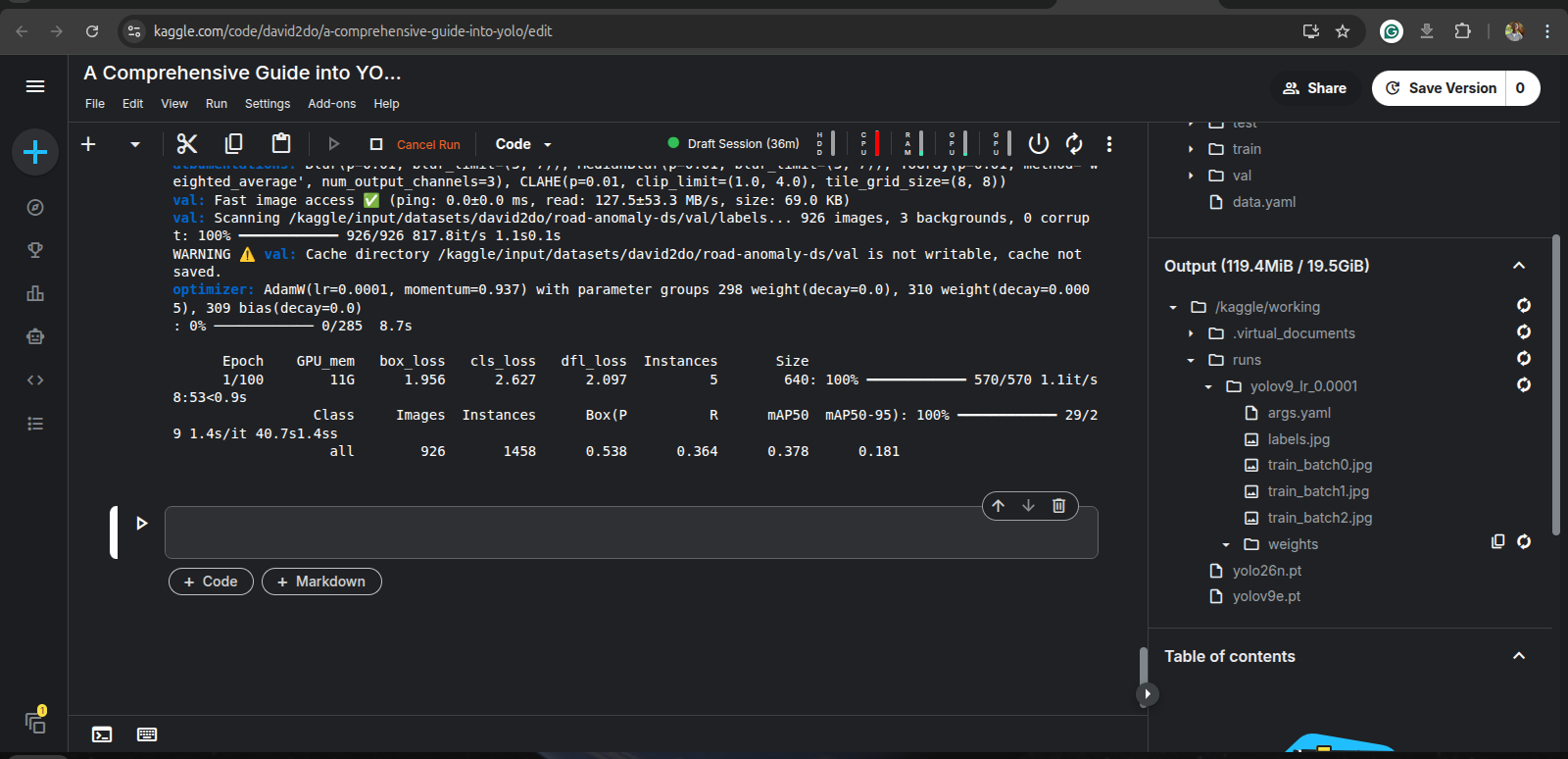
Running the code above may take significant time even with the use of GPU. Thus, it is suggested that you commit the notebook in kaggle so that it keeps running in the background even with the browser closed.
Once the training finishes, you can obtain the metrics at each epoch, like loss, precision, recall, mAP@50, mAP@50-95, and the model weights from the output if you commit the notebook, or at /kaggle/working/runs/yolov9_lr_0.0001. Ensure to download the content of /kaggle/working/runs/yolov9_lr_0.0001 else, it will be lost when the session is stopped.
The model weights is found in the weights folder and there are two files: best.pt and last.pt. best.pt is the model weights when the highest mAP@50 occurred, while last.pt is simply the model weights at the last epoch.
Performance Evaluation and Testing
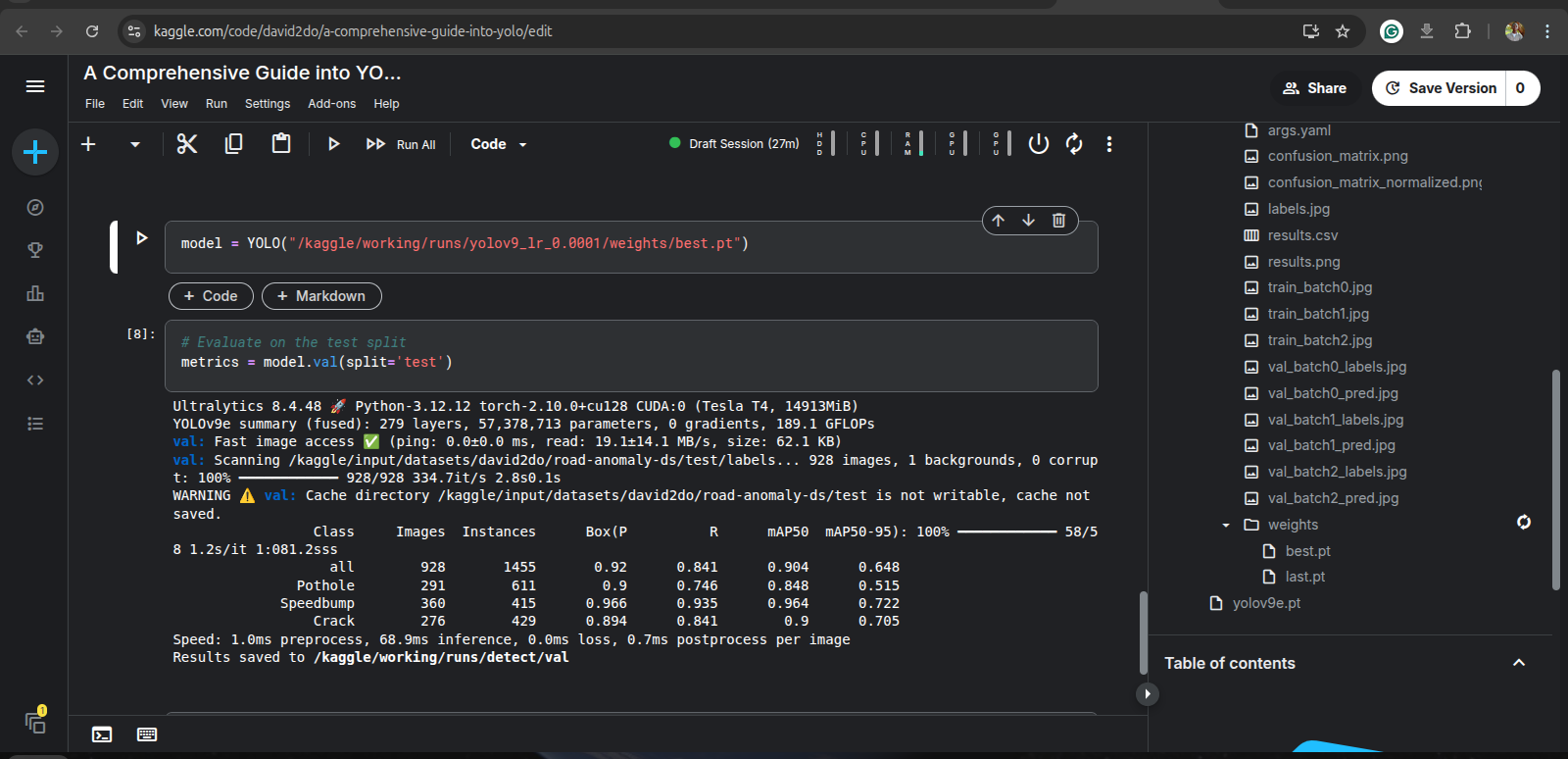
In this stage, we assess the performance of the model which we have trained. Though, we have via training, gotten performance metrics, it is however important (also a standard in ML) to evaluate the model on the test set of our dataset. It is recommended to use best.pt for this; we need to run this code:
model = YOLO("path/to/best.pt")
# Evaluate on the test split
metrics = model.val(split='test')
Executing the code above will use the test set to evaluate the overall performance of the model, from where we get the final performance metrics.
And, that’s it! You now know how to build a model applicable in the real-world, whose output of detecting road anomalies can lead to complex decisions to enable an autonomous vehicle to for instance, slow, steer, or stop it.
Check out this kaggle notebook for the training and performance source codes.